Digitally Signing a SmartComponent's Assembly
This topic explains how to digitally sign the assembly associated with a previously created SmartComponent. If a SmartComponent hasn't been created yet, please read the corresponding sections for creating and building one.
To assure users that the SmartComponent's code hasn't been subjected to unauthorized modifications, the developer can digitally sign the assembly of the SmartComponent to allow digital verification and validation of the code.
Caution
This Topic assumes that the developer's organization has already set up the necessary certificates for signing .NET assemblies. This guide is intended to showcase when and where in the development process the signing needs to be done.
The embedded assemblies need to be signed before being processed by the Library Compiler. A simple way to accomplish this is by signing the files as part of the building process used in Visual Studio. By issuing the certification commands to the recently built binaries and processing them later in the Library Compiler, a signed SmartComponent can be obtained in a seamlessly automated way. To do so, follow the steps below:
Digitally signing a SmartComponent
Open the Build configurations for the SmartComponent: "Right Click" on the Project Properties from the Solution Explorer window and navigate to the Build Events section.
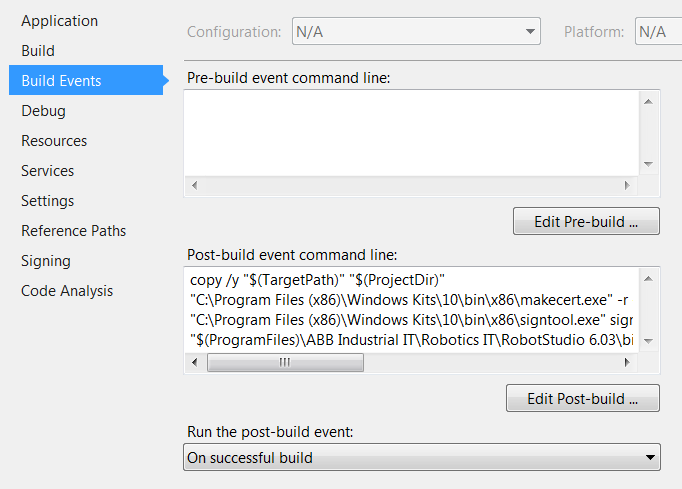
If a certificate is not already available, create one by issuing the following command right after the "copy /y "\((TargetPath)" "\)(ProjectDir)"" command.
"%ProgramFiles(X86)%\Windows Kits\10\bin\x86\makecert.exe" -r -pe -ss MY -sky exchange -n CN=MyPrivateCert CodeSign.cerwhere, "MyPrivateCert" is the name of the internal (Company, Organization, etc) party and "CodeSign.cer" is the name of the output certificate.
Caution
The above command is just there for illustrative purposes. For a verifiable digital signature use the certification data of your organization.
Sign the assembly by using the "signtool" utility as shown in the following command.
"%ProgramFiles(X86)%\Windows Kits\10\bin\x86\signtool.exe" sign /v /s MY /a /n MyPrivateCert /t http://timestamp.verisign.com/scripts/timstamp.dll SmartComponent.dllReplace "MyPrivateCert" with the certificate from your organization, "http://timestamp.verisign.com/scripts/timstamp.dll" by the URL of your organization's verified key and "SmartComponent.dll" by the name of your SmartComponent's .dll file.
Build the SmartComponent with the newly signed assembly by calling the Library Compiler. The complete Post-Build commands for a default project are:
copy /y "$(TargetPath)" "$(ProjectDir)"
"%ProgramFiles(X86)%\Windows Kits\10\bin\x86\makecert.exe" -r -pe -ss MY -sky exchange -n CN=MyPrivateCert CodeSign.cer
"%ProgramFiles(X86)%\Windows Kits\10\bin\x86\signtool.exe" sign /v /s MY /a /n MyPrivateCert /t http://timestamp.verisign.com/scripts/timstamp.dll SmartComponent.dll
"%ProgramFiles(X86)%\ABB\RobotStudio {version}\bin\LibraryCompiler.exe" "$(ProjectDir)\SmartComponent.xml"
Caution
Issuing the past commands will build a signed SmartComponent with a test certificate since the code is just there for illustrative purposes.